October 13, 2026
New: Team Performance Dashboard
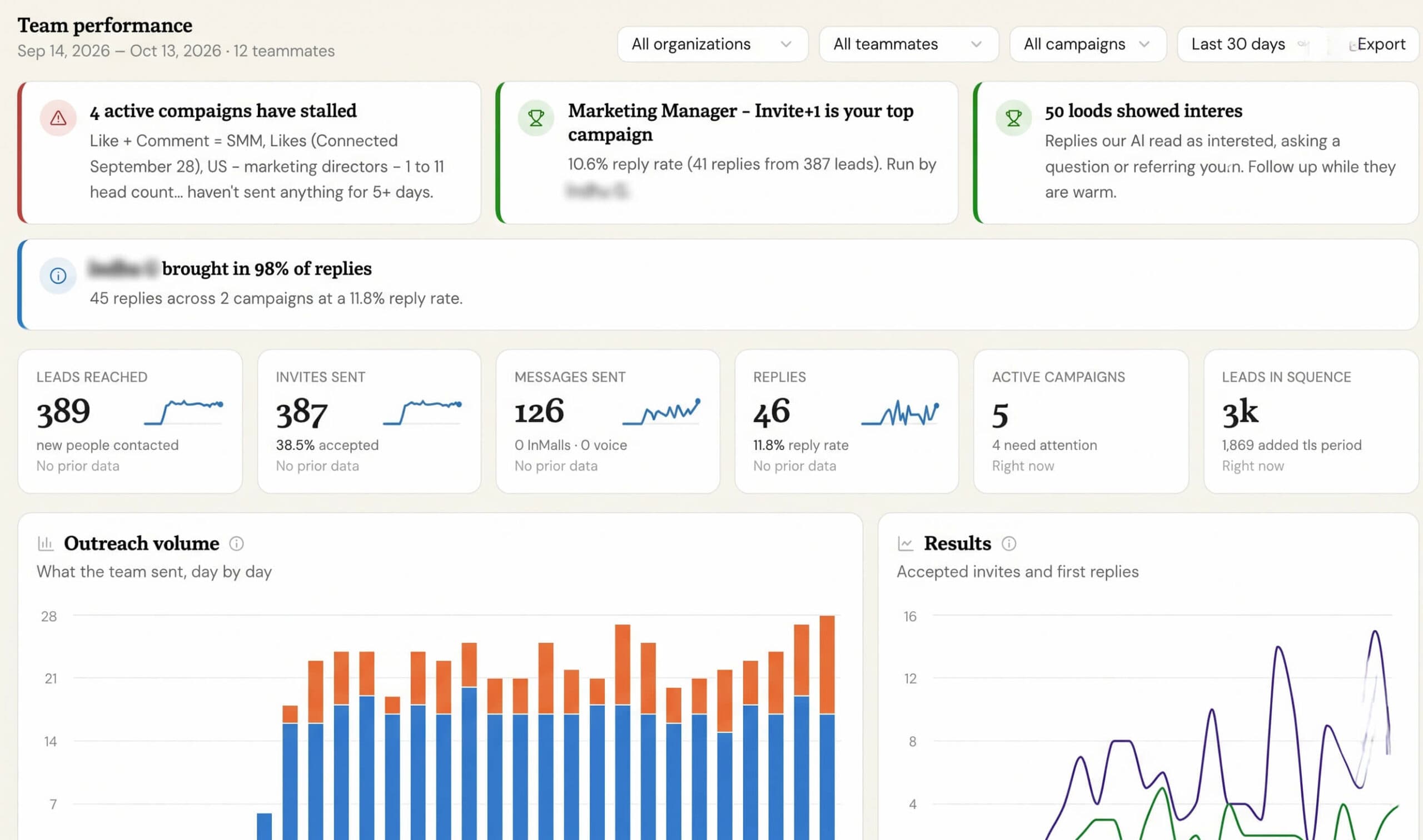
See how your whole team is doing, in one place
If you’re a team owner or admin, you can now see every campaign across your team on a single page. Just open Team Performance in the left menu.
Until now, Home only showed your own campaigns, so checking on the team meant switching into each teammate’s account one by one. Not anymore.
What’s on the page
- The story of the period: plain-English highlights up top, like your best campaign and how it stacks up against the team average, whether replies are up or down, which campaigns have stalled or run out of leads, and who brought in the most replies.
- Key numbers with trends: leads reached, invites and accept rate, messages, replies and reply rate, active campaigns and leads in sequence, each compared with the previous period.
- Charts: outreach volume by channel (invites, messages, InMails, voice notes), accepted invites and replies over time, and a funnel from first touch to interested reply.
- Campaign leaderboard: every campaign ranked, with a health label (Strong, Steady, Needs attention, Stalled, Out of leads), its owner and a trend line. Sort it, search it, or click a campaign to open its insights.
- Teammates: each person’s results and share of the team’s replies, plus a trend chart that spotlights one teammate against the rest.
- How your team reaches people: the mix of actions your campaigns take, which first touch gets the most replies, and which days of the week people tend to reply.
- Export: download the campaign or teammate table as a CSV.
Filters
Narrow things down by date range (last 7, 30 or 90 days, or a custom range), teammate, campaign status and, if your team uses Organizations, by Organization.
Who sees what
Team members keep seeing their own results on Home, same as before. Admins see the teammates they already have access to in Team settings.
Nothing to set up. Just open Team Performance from the left-hand menu and take a look.