How to Withdraw LinkedIn Invitations: A Step-by-Step Guide
Did you send a connection request on LinkedIn but haven’t received a response? Maybe you accidentally sent the invite to the wrong person or you’re cleaning up old pending requests. Whatever the reason, LinkedIn has made it easy to withdraw invitations. Keeping your pending invites under control is important in maintaining a professional online presence.
Too many unanswered requests can affect your LinkedIn visibility. Fortunately, removing them only takes a few quick steps. You can either use a LinkedIn automation tool to automatically withdraw invitations after a specific period or go the manual route. Read on to find out how you can withdraw LinkedIn connections on your preferred device.
How do you withdraw an invite on LinkedIn desktop?
Withdrawing a LinkedIn invitation is a simple process. If you’ve sent a request that’s been pending for a while, here’s how you can withdraw it on your desktop:
- Log into LinkedIn and go to your homepage.

- Click on the "My Network" icon at the top of the page.
- Select “Manage” next to your pending invitations.

- Click on the "Sent" tab to view all invitations you’ve sent.

- Find the request you want to remove and click the "Withdraw" option next to the recipient’s name.

- A pop-up will appear to confirm your action—click the “Withdraw” option again.

That’s it! The invitation will disappear from the recipient’s pending requests, and they won’t even receive a notification. Although, if they had already accepted your request, you would need to remove them as a connection instead.
How do you withdraw an invite on LinkedIn mobile?
If you prefer using LinkedIn mobile, that’s not a problem. You can also withdraw your invitations using the mobile app. Here’s how to do it:
- Open the LinkedIn app on your mobile device and log in.

- Click on the “My Network” icon at the bottom of the screen.

- Click the “Invitations” option at the top of your homepage to view your invitations.

- Switch to the “Sent” tab to see all pending connection requests.

- Navigate to the invitation you want to remove and tap “Withdraw” next to the person’s name.
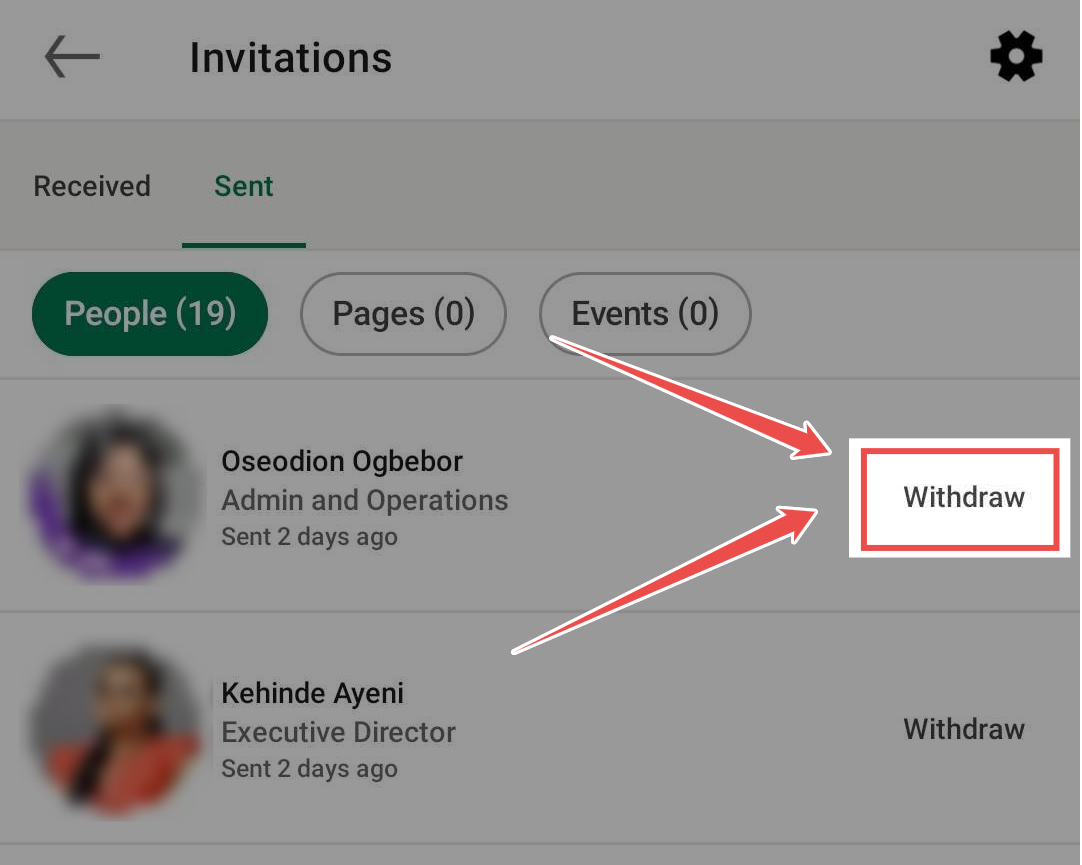
- Confirm your action when prompted.

Once withdrawn, the request will disappear from the recipient’s pending list, and they will not receive a notification.
Three Reasons Why You May Want to Withdraw an Invitation Request
Not every LinkedIn connection request is meant to stay pending forever. Although it might not seem like a big deal, too many unanswered requests can affect your networking and visibility on the platform.
Withdrawing an invitation can help you maintain an effective LinkedIn strategy to boost your business. But when should you remove a request? Here are three key reasons why it might be the right move.
You Accidentally Sent the Wrong Invite
We’ve all been there—you’re scrolling through LinkedIn looking for the right connections, and before you know it, you’ve sent an invite to the wrong person. It might’ve been a total stranger instead of a potential client, or maybe you clicked on a similar-looking profile by mistake.
Whatever the case, leaving an accidental request pending isn’t a good idea. It can make your networking seem unfocused and random. Withdrawing it ensures you stay intentional about who you connect with and avoid unnecessary confusion.
You Changed Your Mind About Connecting
Maybe you sent a request in the moment, but later on, you realized the connection isn’t as relevant as you initially thought. It happens! Networking should be strategic, and if a request no longer aligns with your goals, it’s ok to withdraw it. Keeping your connections intentional ensures that your LinkedIn network stays meaningful and valuable.
Make Better LinkedIn Connections with Botdog
So, you've decided to withdraw a connection request. Do you know what that means for your LinkedIn profile? Besides, what if you automate the process and make your networking even more strategic without manual efforts?
The good news is that Botdog withdraws pending invitations in bulk and schedules clean-ups so your pending requests don’t pile up. Let’s break down how Botdog helps you stay in control of your invitation withdrawals:
- Creates an Automatic Schedule for Withdrawals: You can set up a schedule to withdraw unanswered invitations after a specific period. This means the recipient will no longer see your request in their “My Network” tab, and it will be as if you never sent it.
- Prevents Wasted Efforts: Botdog’s blacklist feature prevents you from repeating connections with people or contacts who don’t fit your lead profile.
- Ensures Withdrawals Stay Discreet: Luckily, the other person won’t be notified that you withdrew your request. If they never saw it in the first place, they may not even realize you sent one.
- Maintains Your LinkedIn SSI Score: Although having too many pending invites affects your score, withdrawing requests does not. But, constantly withdrawing and resending invites may make it seem like you are being less strategic in your networking approach. Using Botdog optimizes your connection strategies to ensure your outreach efforts align with LinkedIn’s best practices.
Key Takeaway
The key takeaway? Be intentional with your networking. Instead of sending out mass requests, focus on building meaningful relationships with the right people. And if you ever withdraw an invite, don’t stress; it won’t harm your profile or alert the recipient.
If you want to land more leads, try out Botdog–a simple LinkedIn automation tool that empowers teams in their outreach efforts. Sign up for free and start making connections that matter.